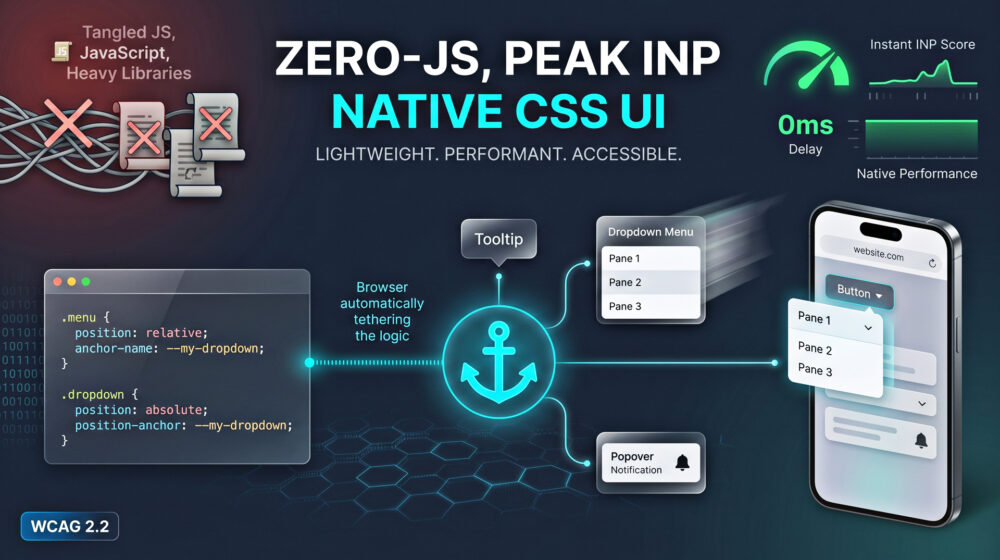
If you have spent any time looking at your Google Search Console lately, you’ve likely seen a metric that is causing a lot of headaches: INP (Interaction to Next Paint). Since replacing First Input Delay (FID), INP has become the ultimate judge of how "snappy" your website feels.
For most WordPress sites, the biggest enemy of a high INP score is JavaScript.
We’ve become dependent on massive JS libraries to handle simple things. Want a dropdown menu? Use a script. Want a tooltip? Load a library. Want a "sticky" popover that follows a button? That’s another 20KB of JavaScript recalculating positions every time the user scrolls. These scripts block the main thread, leading to laggy interactions and frustrated visitors.
But what if you could do all of that with zero JavaScript?
The Performance Crisis: Why JavaScript is Killing Your WordPress Site
Enter CSS Anchor Positioning. This is a revolutionary new feature in the CSS landscape that allows us to tether elements together purely through stylesheets. In this guide, we are going to dive deep into how you can use this technology to create high-performance, lightweight WordPress UI components that keep your INP scores in the green.
What is CSS Anchor Positioning?
Traditionally, if you wanted an element (like a menu) to stay attached to another element (like a button) regardless of window resizing or scrolling, you had to use JavaScript. Libraries like Popper.js or Floating UI were the gold standard. They would calculate the X and Y coordinates of the "anchor" and manually update the "positioned" element.
CSS Anchor Positioning moves that logic into the browser’s engine. It allows you to define one element as an anchor and another as the target, then link them using simple CSS properties.
The Core Properties
To master this "Zero-JS" approach, you only need to understand three main concepts:
anchor-name: This identifies the element you want to "stick" things to.position-anchor: This tells the floating element which anchor it should follow.anchor()function: This calculates the specific coordinates (top, bottom, left, right) relative to the anchor.
Why "Zero-JS" is the Future of Technical SEO
As search engines evolve into Answer Engines, the technical health of your site matters more than ever. AI Overviews prioritize content that loads instantly and functions perfectly on mobile devices.
By stripping away JavaScript for UI positioning, you achieve three things:
- Lower Total Blocking Time (TBT): The browser doesn’t have to wait for scripts to download and execute.
- Improved INP: Interactions like opening a menu happen at the "system level" of the browser, making them feel instantaneous.
- Better Accessibility: When combined with the HTML Popover API, you get native focus management and keyboard support that meets WCAG 2.2 standards without writing a single line of custom JS.
Step-by-Step: Building a Zero-JS WordPress Tooltip
Let’s get practical. Imagine you want to show a small descriptive box when a user hovers over a "Help" icon in your WordPress block editor.
1. Define the Anchor
First, we give our button a name. In your CSS (or the "Additional CSS" section of your WordPress theme):
CSS
.help-icon {
  anchor-name: --help-tooltip-anchor;
}
2. Style the Positioned Element
Now, we tell the tooltip to find that anchor.
CSS
.tooltip-content {
  position: absolute;
  position-anchor: --help-tooltip-anchor;

  /* Stick the top of the tooltip to the bottom of the icon */
  top: anchor(bottom);
  left: anchor(center);

  /* Center the tooltip horizontally */
  transform: translateX(-50%);

  /* Visual styling */
  background: #333;
  color: #fff;
  padding: 8px;
  border-radius: 4px;
}
3. Making it Interactive (The Popover API)
To make this truly functional for screen readers and keyboard users (WCAG 2.2 compliance), use the HTML popover attribute.
HTML
<button class="help-icon" popovertarget="my-tooltip">
  Help Icon
</button>

<div id="my-tooltip" popover class="tooltip-content">
  This is a zero-JS tooltip!
</div>
With this setup, the browser handles the "open/close" logic and the "positioning" logic natively. No jQuery, no addEventListener, and zero impact on your INP score.
High-Performance WordPress Menus
Most WordPress themes (like Kadence, Blocksy, or GeneratePress) are already very fast. However, their mobile and mega-menus still rely on JavaScript to toggle classes and calculate positions.
By implementing Anchor Positioning in your WordPress development workflow, you can build "Edge-First" performance UI. This means the layout is resolved at the browser level before the user even moves their mouse.
Improving WordPress INP with CSS
When a user clicks a "hamburger" menu on a mobile device, the browser has to:
- Register the click.
- Execute the JS function.
- Calculate the menu position.
- Paint the menu.
With Anchor Positioning, steps 2 and 3 are handled by the browser's optimized C++ code, not your site's JavaScript. This reduces the delay between the "click" and the "paint," directly lowering your INP.
Accessibility and WCAG 2.2 Considerations
A common mistake in modern web design is prioritizing performance over people. A "Zero-JS" solution is only good if it works for everyone.
Focus Management: When using the Popover API with CSS anchors, ensure that your elements are accessible via the TAB key. The browser's native popover attribute automatically handles "light dismiss" (closing the menu when clicking outside or hitting Esc), which is a core requirement of WCAG 2.2 Success Criterion 2.1.1 (Keyboard).
Color Contrast: Ensure your tooltips and menus have a contrast ratio of at least 4.5:1 against their background. This is vital for users with low vision and helps your content rank better in "AI Overviews" which prefer highly readable, structured data.
The WordPress Developer’s Guide to Browser Support
As of 2026, CSS Anchor Positioning is widely supported in Chromium-based browsers (Chrome, Edge, Brave). However, for Safari and Firefox, we need a Progressive Enhancement strategy.
Using @supports
You should always wrap your anchor logic in a feature query to ensure your site doesn't break on older browsers.
CSS
@supports (anchor-name: --test) {
  /* High-performance Anchor code here */
}

@supports not (anchor-name: --test) {
  /* Standard absolute positioning or lightweight JS fallback */
}
This ensures that while 80-90% of your users get the lightning-fast "Zero-JS" experience, the remaining users still get a functional (if slightly heavier) version of your site.
Summary: How to Optimize Your WordPress Site Today
To stay ahead in the world of technical SEO and modern web development, you must move logic away from the main thread. CSS Anchor Positioning is not just a "cool trick" it is a fundamental shift in how we build user interfaces.
- Audit your site: Look for JS libraries like
Popper.jsorTippy.jsand replace them. - Use the Popover API: Pair it with CSS anchors for the best accessibility.
- Test your INP: Use tools like PageSpeed Insights to see the immediate improvement in interaction speed.
- Embrace Block Themes: Modern themes like Gutenberg-first builders make it easier to inject these custom CSS properties without fighting legacy code.
Building a Lightweight WordPress UI isn't about removing features; it’s about implementing them smarter. By leveraging the power of the browser, you can provide a premium experience that is both beautiful and blazing fast.
What do you think about the move toward Zero-JS interactivity? Are you ready to ditch your favorite JavaScript libraries for native CSS solutions, or do you think browser support still has a way to go?
Leave a comment below with your thoughts! If you found this guide helpful, feel free to share it with your fellow developers and SEO friends, let’s make the web faster together!
