Artificial Intelligence is transforming the way websites are built, managed, and optimized. From AI-powered content generation to smart customer support systems, modern WordPress websites are increasingly relying on large language models (LLMs) to automate tasks and improve user experiences.
With WordPress 7.0, the platform introduced a powerful new Connectors API that helps developers integrate AI services directly into WordPress. This feature represents a major step toward a more AI-driven future for WordPress development.
However, there is a major limitation developers quickly discovered after the release.
By default, WordPress 7.0 only supports three native AI providers: OpenAI, Anthropic, and Google. While these providers are powerful, they are not the right solution for every developer, agency, or business.
Many developers today prefer alternative AI providers such as DeepSeek, Groq, Ollama, or self-hosted open-source LLMs. Agencies working with sensitive client data often want complete privacy and local AI processing. Others simply want lower operational costs or faster inference speeds than traditional cloud APIs can provide.
Unfortunately, without custom integration support, these developers are effectively locked out of the native WordPress AI interface.
The good news is that WordPress already includes the solution developers need. By using the wp_connectors_init action hook, developers can register completely custom AI providers and extend the WordPress Connectors API far beyond its native limitations.
In this tutorial, you will learn how to add custom AI providers in WordPress 7, create secure integrations for third-party LLM services, connect platforms like Ollama and DeepSeek, and build scalable AI-ready WordPress plugins that work seamlessly with the WordPress ecosystem.
Why Custom AI Providers Matter in WordPress 7
Artificial Intelligence is no longer optional in modern web development. Businesses expect websites to generate content, automate support, optimize SEO, analyze data, and personalize user experiences in real time.
Because of this shift, agencies and developers are rapidly adopting AI-powered workflows inside WordPress.
The problem is that relying only on native AI providers creates several serious limitations. First, cost becomes a major issue for websites generating large volumes of AI requests. Premium APIs can become expensive very quickly, especially for agencies managing multiple client projects.
Second, privacy and compliance concerns are growing. Some businesses cannot legally or ethically send customer data to third-party cloud providers. This is particularly important in industries such as healthcare, finance, and enterprise SaaS. Local AI solutions like Ollama solve this problem by running models directly on local infrastructure.
Third, performance matters. Platforms such as Groq are becoming popular because they offer extremely fast AI inference speeds. Faster response times are critical for AI chat systems, autocomplete tools, and real-time customer interactions.
Finally, developers want flexibility. Nobody wants to become completely dependent on a single AI vendor. Custom provider support gives developers full control over how AI systems are integrated, updated, and scaled.
This is exactly why the WordPress Connectors API is so valuable.
Understanding the WordPress Connectors API
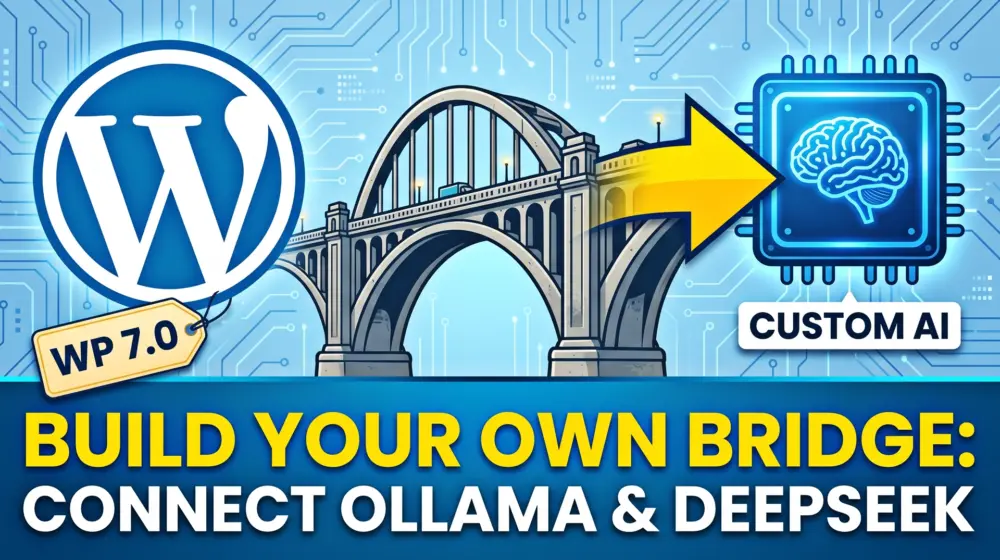
The Connectors API acts as a bridge between WordPress and external AI services. Instead of manually hardcoding every AI integration into plugins or themes, developers can register providers through a unified framework.
This makes AI integrations cleaner, more maintainable, and easier to scale in the future.
At the center of this system is the wp_connectors_init hook. This hook allows developers to register their own providers during WordPress initialization.
By using this hook, developers can extend WordPress core functionality without modifying the WordPress core files themselves. This approach follows modern WordPress development best practices and ensures better compatibility with future updates.
Preparing Your WordPress Development Environment
Before building a custom AI provider, it is important to prepare a proper WordPress development environment.
You should have WordPress 7.0 installed in either a local or staging environment. Basic knowledge of PHP and WordPress plugin development will also help you follow this tutorial more easily.
Many professional developers use tools such as Visual Studio Code for coding, LocalWP for local development, and Postman for API testing and debugging.
A clean development setup makes testing AI integrations significantly easier and safer.
Creating Your Custom AI Provider Plugin
The best way to register custom AI providers is by creating a dedicated WordPress plugin. This keeps your code modular, reusable, and independent from themes.
Your plugin structure may look something like this:
custom-ai-provider/
│
├── custom-ai-provider.php
├── includes/
│   ├── class-custom-provider.php
│   └── settings.php
└── assets/
Inside the main plugin file, start by adding the standard WordPress plugin header.
<?php
/**
 * Plugin Name: Custom AI Provider
 * Plugin URI: https://www.webstudio55.com
 * Description: Register custom AI providers using WordPress Connectors API.
 * Version: 1.0
 * Author: WebStudio55
 * License: GPL2
 */
Once the plugin is activated, WordPress will recognize it automatically.
Registering a Custom AI Provider
Now comes the most important part of the tutorial.
Using the wp_connectors_init hook, you can register your own provider directly into the Connectors API system.
add_action('wp_connectors_init', 'register_custom_ai_provider');

function register_custom_ai_provider($registry) {

    $registry->register_provider(
        'deepseek',
        [
            'label'       => 'DeepSeek AI',
            'description' => 'Custom DeepSeek integration for WordPress',
            'endpoint'    => 'https://api.deepseek.com/v1',
            'supports'    => ['chat', 'completion'],
        ]
    );
}
This simple code snippet creates a completely new provider inside WordPress.
The label defines the visible provider name shown in the UI. The description explains the provider’s purpose. The endpoint specifies the external API URL, while the supports array defines which features the provider can handle.
This structure makes it easy to add support for virtually any AI service available today.
Securely Managing API Keys
Security should always be a top priority when working with AI providers.
One of the most common mistakes developers make is hardcoding API keys directly into plugin files. This creates serious security vulnerabilities and should always be avoided.
Instead, WordPress provides secure settings APIs that allow developers to safely store credentials inside the database.
You can register a secure setting like this:
add_action('admin_init', function () {

    register_setting(
        'custom_ai_settings',
        'custom_ai_api_key'
    );
});
Next, create a settings page inside the WordPress admin dashboard.
add_action('admin_menu', function () {

    add_options_page(
        'Custom AI Settings',
        'Custom AI',
        'manage_options',
        'custom-ai-settings',
        'custom_ai_settings_page'
    );
});
Finally, display the API key field securely:
<input type="password"
       name="custom_ai_api_key"
       value="<?php echo esc_attr(get_option('custom_ai_api_key')); ?>"
       class="regular-text">
This approach follows WordPress security standards and protects sensitive credentials from accidental exposure.
Connecting WordPress to External AI APIs
Once your provider is registered, the next step is sending requests to external AI services.
WordPress provides the wp_remote_post() function for secure API communication.
Here is a basic example using DeepSeek:
$response = wp_remote_post(
    'https://api.deepseek.com/v1/chat/completions',
    [
        'headers' => [
            'Authorization' => 'Bearer ' . get_option('custom_ai_api_key'),
            'Content-Type'  => 'application/json',
        ],
        'body' => json_encode([
            'model' => 'deepseek-chat',
            'messages' => [
                [
                    'role' => 'user',
                    'content' => 'Hello AI'
                ]
            ]
        ]),
    ]
);
This same structure can also work with Groq, OpenRouter, local AI proxies, and self-hosted gateways.
The flexibility of the Connectors API is what makes it so powerful for advanced WordPress development.
Integrating Ollama for Local AI Processing
Ollama has become one of the most popular local AI solutions for developers who want privacy-focused AI processing.
Instead of relying on external cloud APIs, Ollama allows developers to run LLMs directly on their own machines or servers.
This creates several advantages. Websites gain better privacy protection, lower long-term costs, faster local processing, and even offline AI capabilities.
Registering Ollama inside WordPress is surprisingly simple.
add_action('wp_connectors_init', function($registry) {

    $registry->register_provider(
        'ollama',
        [
            'label'       => 'Ollama Local',
            'description' => 'Local AI models using Ollama',
            'endpoint'    => 'http://localhost:11434/api',
            'supports'    => ['chat']
        ]
    );

});
This is one of the best ways to bypass native WordPress AI providers while still preserving full compatibility with the WordPress Connectors API architecture.
Building Scalable Provider Classes
As your plugin grows, it becomes important to organize your code properly.
Large projects should avoid placing all logic inside a single file. Instead, object-oriented development helps improve scalability and maintainability.
Here is a simple example of a reusable provider class:
class Custom_AI_Provider {

    private $api_key;

    public function __construct() {
        $this->api_key = get_option('custom_ai_api_key');
    }

    public function request($prompt) {

        $response = wp_remote_post(
            'https://api.deepseek.com/v1/chat/completions',
            [
                'headers' => [
                    'Authorization' => 'Bearer ' . $this->api_key,
                    'Content-Type'  => 'application/json',
                ],
                'body' => json_encode([
                    'messages' => [
                        [
                            'role' => 'user',
                            'content' => $prompt
                        ]
                    ]
                ]),
            ]
        );

        return json_decode(
            wp_remote_retrieve_body($response),
            true
        );
    }
}
Using classes improves code organization and makes multi-provider integrations significantly easier to manage.
Following WCAG 2.2 Accessibility Guidelines
Accessibility is an essential part of modern web development. Any WordPress plugin interacting with AI systems should remain fully accessible to all users.
WCAG 2.2 guidelines recommend using proper form labels, clear navigation structures, readable error messages, and keyboard-accessible interfaces.
For example, form fields should always include descriptive labels:
<label for="api-key">API Key</label>
<input id="api-key" type="text">
Avoid vague system messages such as “Something went wrong.” Instead, provide clear feedback like “The API key could not authenticate with DeepSeek.”
Accessible interfaces not only improve usability but also contribute to better SEO performance and user engagement.
Performance Optimization for AI Integrations
AI requests can become resource-intensive if implemented poorly.
One effective strategy is caching AI responses using WordPress transients.
set_transient(
    'ai_response_' . md5($prompt),
    $response,
    HOUR_IN_SECONDS
);
Caching reduces unnecessary API calls and improves website performance.
Developers should also implement timeout handling and proper error detection.
'timeout' => 30Always verify API responses using:
is_wp_error($response)For large-scale applications, asynchronous processing through WP Cron or Action Scheduler can significantly improve performance and stability.
SEO Benefits of AI-Enhanced WordPress Websites
Custom AI providers are not only useful for developers. They can also improve SEO performance in multiple ways.
AI-powered workflows help websites generate optimized metadata, improve keyword targeting, create structured content, and enhance internal linking strategies.
As search engines increasingly prioritize AI-generated summaries and Answer Engine Optimization (AEO), websites with intelligent AI systems gain a competitive advantage.
Modern SEO is no longer just about keywords. Search engines now reward websites that provide fast, helpful, personalized, and highly accessible experiences.
This makes AI integration one of the most important future-focused investments for WordPress website owners.
The Future of WordPress AI Development
The WordPress ecosystem is clearly moving toward modular AI architecture.
Future versions of WordPress will likely introduce additional connector registries, AI automation pipelines, multimodal support, voice-based interactions, and advanced AI agents.
Developers who learn the Connectors API today will be well-positioned for the next generation of WordPress development.
Agencies that build reusable AI connectors now will also gain a significant competitive advantage as businesses increasingly demand AI-powered web experiences.
Final Thoughts
The WordPress Connectors API is one of the most exciting advancements in modern WordPress development.
Although WordPress 7.0 currently ships with limited native AI provider support, developers are not restricted by those limitations. By using the wp_connectors_init hook, developers can register custom providers, integrate external LLM services, connect local AI systems like Ollama, and build highly scalable AI-powered WordPress solutions.
Whether you are building SaaS platforms, agency workflows, enterprise tools, or AI-powered plugins, learning how to extend the Connectors API is an investment in the future of web development.
As AI continues to reshape the digital landscape, developers who master custom LLM integration in WordPress core will become increasingly valuable in the global WordPress ecosystem.
What type of AI provider are you planning to integrate into WordPress first Ollama, DeepSeek, Groq, or your own custom AI gateway? Share your thoughts in the comments below, and if this tutorial helped you, don’t forget to share it with your friends, fellow developers, and WordPress communities.
