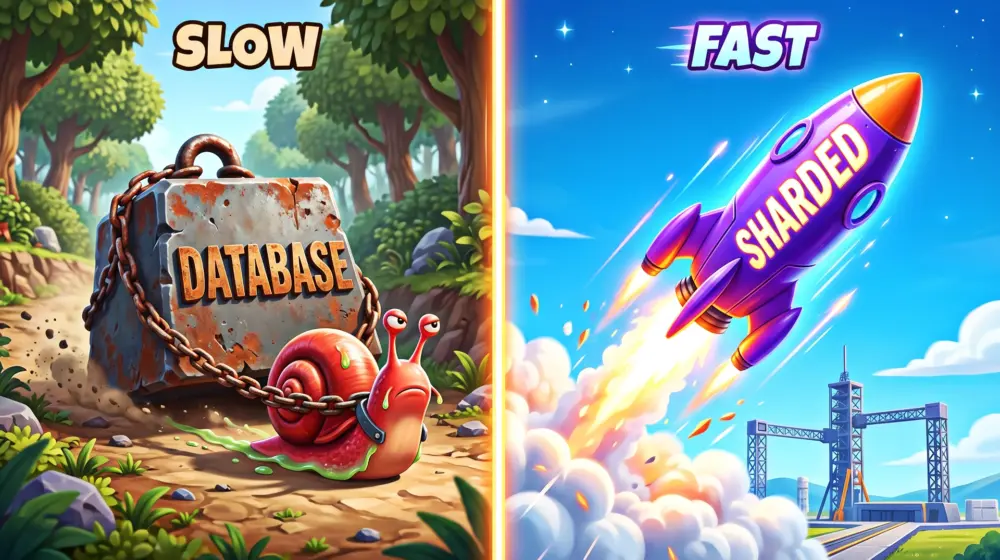
What is WooCommerce database sharding? WooCommerce database sharding is the process of splitting a massive WordPress database into smaller, faster, and more manageable pieces (shards) across multiple servers. It solves the performance bottleneck of the wp_postmeta table, ensuring fast checkout times and instant product searches for enterprise stores with hundreds of thousands of products and millions of orders.
If you are reading this, you are likely dealing with a nightmare scenario. Your WooCommerce store is a massive success. You have over 100,000 products, your traffic is booming, and you are processing thousands of orders a day.
But there is a fatal flaw hiding behind your success: your checkout takes 5 seconds (or more) to load.
You have thrown everything at the problem. You upgraded to a massive dedicated server. You installed premium caching plugins. You set up Redis Object Caching. But nothing works. The front page loads in 200 milliseconds, but the moment a customer clicks "Place Order," the wheel spins... and spins... and spins.
Cart abandonment is skyrocketing. Customers are frustrated. And your server CPU spikes to 100% during peak hours.
The harsh reality? Caching plugins cannot fix dynamic requests like checkouts. The culprit is the WordPress database architecture itself specifically, the infamous wp_postmeta table collapsing under its own weight.
In this comprehensive guide, we are going deep into WooCommerce database sharding, custom order tables performance, and the ultimate strategies for scaling wp_postmeta for enterprise.
Let’s rescue your checkout.
The Root Cause: Why wp_postmeta Collapses at Scale
To fix the problem, we first need to understand why WordPress breaks at the enterprise level.
WordPress was originally built as a blogging platform. When WooCommerce was created, it adopted the core WordPress database structure. Every product is saved as a post in the wp_posts table. But products have a lot of specific data: prices, SKUs, inventory levels, dimensions, and custom attributes.
Instead of adding a new column for every possible attribute, WooCommerce uses an Entity-Attribute-Value (EAV) model, storing all this extra data in the wp_postmeta table.
The EAV Nightmare
If you have 100,000 products, and each product has 30 pieces of metadata (price, stock status, weight, color, size, etc.), your wp_postmeta table instantly swells to 3,000,000 rows.
Now add 500,000 past orders. Historically, WooCommerce stored orders as posts, and order details (billing address, shipping total, tax) as postmeta. This adds another 15,000,000 to 20,000,000 rows to the exact same table.
When a customer checks out, WooCommerce has to:
- Check the current inventory (querying a 25-million-row table).
- Calculate shipping logic based on weight and class (querying the same table).
- Insert new order data (locking the table momentarily).
- Update the stock quantity (writing to the same table).
Because checkouts bypass page caching, every single purchase forces MySQL to sift through millions of rows. It is like asking a librarian to find a single receipt in a room filled to the ceiling with billions of unsorted sticky notes.
This is why WooCommerce database optimization for millions of rows requires an architectural shift, not just a plugin.
Step 1: The Foundation - Custom Order Tables (HPOS)
Before we get to advanced sharding, we must implement the biggest performance upgrade WooCommerce has released in a decade: High-Performance Order Storage (HPOS), formerly known as Custom Order Tables (COT).
What is HPOS?
HPOS moves order data out of the generic wp_posts and wp_postmeta tables and into their own dedicated, heavily optimized tables (wp_wc_orders, wp_wc_order_addresses, etc.).
Custom Order Tables Performance Benefits
- Massive read/write speed improvements: Finding an order's billing address is now a direct column lookup, bypassing millions of unrelated postmeta rows.
- Reduced DB size: Your
wp_postmetatable drops in size drastically, speeding up all other product queries. - Dedicated Indexes: The new tables are indexed specifically for eCommerce queries.
How to enable it: If you are on WooCommerce 8.0+, HPOS is available. Go to WooCommerce > Settings > Advanced > Features and enable "High-Performance Order Storage". (Note: Ensure all your third-party plugins are HPOS compatible first, or the site will break).
While HPOS fixes the order side of the EAV problem, it doesn't solve the product side. If you have 200,000 products, your wp_postmeta is still too big. That is where sharding comes in.
Step 2: What is WooCommerce Database Sharding?
Database sharding is a method of distributing a single, massive database across multiple smaller databases (shards) that share nothing. Each shard is held on a separate database server.
Think of a traditional WordPress database as a single, massive filing cabinet. When 1,000 people try to open the same drawer at the same time to pull files, a traffic jam occurs.
Sharding splits that massive filing cabinet into ten smaller cabinets, placed in ten different rooms. Now, those 1,000 people are distributed, and everyone gets their files instantly.
Vertical Scaling vs. Horizontal Scaling
- Vertical Scaling (Scaling Up): Buying a bigger, more expensive server with more CPU and RAM. This works up to a point, but eventually, you hit hardware limits and astronomical costs.
- Horizontal Scaling (Scaling Out / Sharding): Adding more servers to handle the load. This is how giants like Amazon and Netflix operate.
Types of Sharding for WooCommerce
When scaling wp_postmeta for enterprise, we generally look at three types of database splitting:
1. Read/Write Splitting (Replication)
This is the easiest "sharding-lite" method. You have one Master database that handles all "writes" (new orders, stock updates, user registrations) and multiple Replica databases that handle all "reads" (customers browsing products, searching the catalog).
- The Benefit: When a rush of traffic browses your store, they hit the replicas. Your master database is left completely free and uncongested to process checkouts instantly.
2. Functional Partitioning
This involves separating the database based on the type of data.
- Server A: Handles core WordPress tables (
wp_options,wp_users). - Server B: Handles WooCommerce products and catalogs.
- Server C: Handles the checkout and HPOS order tables.
3. True Data Sharding
Splitting the exact same table across servers. For example, customers with IDs 1 to 50,000 are on Server A, and customers 50,001 to 100,000 are on Server B. This is incredibly complex for WordPress natively but can be achieved with custom enterprise development.
Step 3: Implementing Sharding with HyperDB / LudicrousDB
WordPress does not support sharding out of the box. To make WordPress talk to multiple databases, we have to replace the core database driver (wpdb).
We do this using a drop-in file called db.php, placed in your /wp-content/ directory. The two most trusted tools for this are HyperDB (developed by Automattic, the creators of WordPress) and its modern fork, LudicrousDB.
How LudicrousDB Rescues WooCommerce
LudicrousDB acts as an intelligent traffic cop for your database queries. When a customer adds a product to their cart, LudicrousDB intercepts the SQL query and says: "Ah, this is a read request for product data. I will route this to Replica Database Server 2."
When the customer checks out, LudicrousDB says: "This is an order write request. I will route this directly to the Master Database Server to ensure the transaction is recorded securely."
A basic setup looks like this:
- Master Database (DB1): Handles the WordPress Admin dashboard, WooCommerce checkouts, and inventory updates.
- Replica Database (DB2): Syncs continuously with DB1. Handles all front-end shop browsing, product loops, and category pages.
By implementing this architecture, the 5-second checkout delay disappears. The database locking issues caused by 100 people browsing the store while 5 people try to checkout simultaneously are eliminated.
Step 4: Offloading Search to Elasticsearch
Even with a sharded database, using MySQL to search a 100k+ product catalog is a bad idea. When a user types a query into the search bar, WordPress runs a LIKE %searchterm% SQL query.
This query forces MySQL to scan every single row in the database. It cannot use indexes. It is a massive performance killer.
To achieve true WooCommerce database optimization for millions of rows, you must offload the search function entirely.
Enter ElasticPress & Elasticsearch
Elasticsearch is a NoSQL, distributed search and analytics engine. Instead of querying MySQL, you push your product data into an Elasticsearch index.
Using a plugin like ElasticPress, you bypass the WordPress database entirely for:
- Text searches
- Product category filtering
- Faceted searches (e.g., filtering by Size: Large, Color: Blue, Price: $50-$100)
- Related products
Elasticsearch returns complex queries in milliseconds. By combining a Sharded MySQL setup for transactions with Elasticsearch for browsing, your WooCommerce store will feel as fast as a headless React app.
Step 5: Essential Database Optimization for Millions of Rows
Sharding is powerful, but you shouldn't shard garbage data. Before distributing your database, you must optimize it.
1. Clean Up Orphaned Postmeta
If you have deleted thousands of products or revisions over the years, their metadata likely still exists, bloating your tables. Run SQL queries to delete orphaned meta:
SQL
DELETE pm
FROM wp_postmeta pm
LEFT JOIN wp_posts wp ON wp.ID = pm.post_id
WHERE wp.ID IS NULL;
(Always backup your database before running raw SQL!)
2. Add Custom Indexes
MySQL uses indexes like the table of contents in a book to find data quickly. WordPress's default indexes are not optimized for heavy WooCommerce stores. Adding custom indexes to the wp_postmeta table based on how your specific store filters products (e.g., indexing the meta_key column for specific product attributes) can speed up queries drastically.
3. Autoloaded Options Control
The wp_options table loads on every single page load. Plugins often leave behind "autoloaded" data that is no longer needed. Keep your autoloaded data strictly under 1MB (ideally under 500kb). Use queries to identify the largest autoloaded options and delete those left by uninstalled plugins.
UI/UX & Accessibility: Performance is a Human Right
As a UI/UX specialist, I must emphasize that backend database architecture directly impacts frontend user experience and accessibility.
The Cognitive Load of Slow Checkouts
When a checkout takes 5 seconds to load, it creates "friction." Users wonder, Did my card go through? Should I click the button again? Is this site a scam? This uncertainty causes cognitive overload, leading to duplicate orders or hard bounces.
WCAG 2.2 and Performance
The Web Content Accessibility Guidelines (WCAG 2.2) state that users with disabilities particularly cognitive or attention-deficit disorders need clear, predictable interfaces.
While WCAG guideline 2.2 (Enough Time) focuses on not timing users out, a reverse timeout (waiting too long for a system response) severely impacts users with ADHD or anxiety. Instantaneous feedback, powered by a properly sharded database, ensures that assistive technologies (like screen readers) announce success states immediately, providing a seamless, accessible experience.
Pro UI Tip: Even if you optimize your database and achieve a 1-second checkout, always ensure your UI uses ARIA live regions (aria-live="polite") to announce to screen readers that the "Order is processing..." while the spinner is active.
The Ultimate Enterprise Stack Checklist
If you are scaling a WooCommerce store beyond 100,000 products, your architecture should look like this:
- Hosting: Cloud VPS (AWS, Google Cloud, or specialized enterprise WordPress hosts).
- Page Caching: Nginx FastCGI or Varnish (for static assets and non-logged-in users).
- Object Caching: Redis (to store repetitive database query results in RAM).
- Order Storage: HPOS (Custom Order Tables) enabled and verified.
- Search & Filtering: Elasticsearch (via ElasticPress) handling all catalog queries.
- Database Architecture: Master/Replica database sharding via LudicrousDB to split read and write traffic.
Conclusion
Hitting 100,000 products in WooCommerce is a monumental achievement, but it exposes the architectural limits of standard WordPress. The wp_postmeta table was simply not designed to act as a massive, relational enterprise product information management (PIM) system.
By moving to High-Performance Order Storage, offloading search to Elasticsearch, and implementing read/write database sharding, you can conquer the 5-second checkout problem. You will lower your server costs, increase your conversion rates, and build a highly accessible, lightning-fast store that scales effortlessly.
Do not let database bottlenecks punish you for your success. Scale your architecture, and watch your sales soar.
I’d love to hear from you! What is the largest wp_postmeta table you have ever had to deal with, and what was your immediate quick-fix to stop the server from crashing?
Leave a comment below to share your battle stories, and if this guide helped you rethink your database architecture, please share it with your fellow developers!
