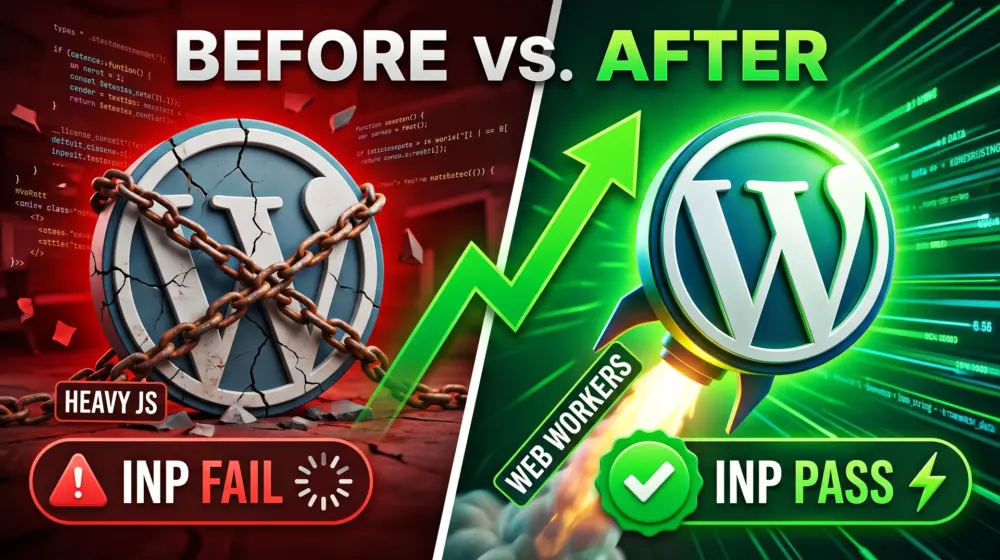
If you run a WordPress site in 2026, you’ve probably felt the tremors. Rankings are shuffling, traffic is dropping for previously stable sites, and a mysterious acronym is flashing red in Google Search Console: INP.
Welcome to the Interaction to Next Paint crisis.
Google’s Core Web Vitals have officially placed a massive weight on INP, shifting the focus from how fast a page loads to how fast a page reacts. For modern web users, responsiveness is everything. But for legacy WordPress sites bogged down by heavy page builders, complex themes, and dozens of plugins, this new metric is a nightmare.
Don't panic. As an experienced WordPress developer, I’m here to tell you that this is fixable. In this comprehensive Core Web Vitals 2026 guide, we are going strictly under the hood. We will break down exactly how to identify heavy JavaScript execution, optimize your main-thread activity, and implement advanced techniques like Web Workers to permanently fix WordPress INP issues.
Let’s get your site back in Google’s good graces.
What is Interaction to Next Paint (INP)?
Before we can fix the problem, we need to understand it in plain English.
Interaction to Next Paint (INP) measures UI responsiveness. It calculates the time between a user’s interaction with your page (like clicking a button, tapping a menu, or pressing a key) and the moment the browser actually updates the screen to show the result of that action.
Imagine clicking an "Add to Cart" button.
- Good INP (Under 200 milliseconds): The button instantly clicks, a spinner appears, and the cart slides open. It feels snappy and alive.
- Poor INP (Over 500 milliseconds): You click the button. Nothing happens. You wonder if you missed it, so you click again. A second later, the screen freezes, and then two items are suddenly added to your cart. It feels broken.
Google wants to eliminate that broken feeling.
Why is WordPress Struggling with INP?
WordPress is a phenomenal platform, but it has a historical baggage problem: JavaScript (JS).
Browsers execute tasks on something called the "Main Thread." Think of the main thread as a single checkout lane at a grocery store. It handles everything: rendering HTML, styling with CSS, and executing JavaScript.
If a massive, heavy piece of JavaScript from a legacy page builder or an analytics plugin gets in line, it blocks the cashier. While that massive JS file is being processed, a user might click your menu button. But because the cashier (the main thread) is busy, the user's click has to wait in line. This delay is exactly what ruins your INP score.
Step 1: Identifying "Heavy" JavaScript Execution
You can't fix what you can't see. The first step in Interaction to Next Paint optimization is finding out which plugins or scripts are hoarding the main thread.
Tool 1: Google PageSpeed Insights
Run your URL through PageSpeed Insights. Scroll down to the "Diagnostics" section and look for:
- Avoid long main-thread tasks
- Reduce JavaScript execution time
This will give you a list of URLs pointing to the specific scripts causing the blockage. You will often see scripts from third-party ads, tracking pixels, or your theme's core JS file.
Tool 2: Chrome DevTools (The Developer's X-Ray)
For a more precise look, open your site in Google Chrome, right-click, and select Inspect.
- Go to the Performance tab.
- Click the Record button (the small circle).
- Interact with your page (click a menu, open a popup).
- Stop the recording.
Look at the "Main" track. You will see a lot of colored bars. The ones you need to hunt down are the yellow boxes with red triangles in the corner. These are Long Tasks, any script that takes longer than 50 milliseconds to execute. Hover over them, and Chrome will tell you exactly which file is the culprit.
Step 2: WordPress JavaScript Minification and Deferral
Once you know the culprits, it’s time for the low-hanging fruit. If you have scripts loading before they are needed, they are going to ruin your INP.
What is Minification?
WordPress JavaScript minification is the process of stripping out all the unnecessary characters from your code like spaces, line breaks, and comments. It turns a large, human readable file into a tiny, computer-readable block. Smaller files process faster.
Defer and Delay
Minification shrinks the file, but Deferring and Delaying changes when the file gets in line at the checkout counter.
- Defer JS: Tells the browser, "Download this script in the background, but don't execute it until the HTML is fully built." This is great for scripts you need right away but shouldn't block the initial layout.
- Delay JS: Tells the browser, "Do not even load this script until the user actually scrolls or moves their mouse." This is a lifesaver for heavy third-party scripts like Google Analytics, Facebook Pixels, or live chat widgets.
How to implement this in WordPress: You don't need to code this by hand. Use a premium performance plugin like WP Rocket, Perfmatters, or FlyingPress. Simply go to their settings and check the boxes for:
- Minify JavaScript files
- Load JavaScript deferred
- Delay JavaScript execution (and add your heavy third-party scripts to the inclusion list).
Step 3: Optimizing Main-Thread Activity (Breaking Up Long Tasks)
If you’ve minified and delayed your scripts, but your INP is still in the red, you have a structural problem. You have Long Tasks that cannot be delayed because they are essential to the user interface.
To fix this, we need to practice something called "Yielding to the Main Thread."
Imagine that person at the grocery store checkout lane with a cart full of 200 items (a Long Task). Instead of making everyone else wait while they ring up all 200 items, the cashier rings up 10 items, pauses to let a person buying just a candy bar (a user interaction) go through, and then resumes ringing up the big cart.
In web development, we break up heavy JavaScript functions into smaller chunks so the browser has brief windows to process user clicks.
How to Yield in WordPress
If you are developing a custom theme or writing custom JS for your site, you should update your code to use modern scheduling APIs.
Instead of running a massive loop all at once, wrap chunks of your work in setTimeout functions, or use the modern scheduler.yield() API (which is heavily recommended in 2026).
// Example of yielding to the main thread
async function processHeavyData(data) {
  for (let i = 0; i < data.length; i++) {
    // Process a chunk of data
    doSomeHeavyLifting(data[i]);

    // Periodically yield to the main thread so the browser can respond to clicks
    if (i % 10 === 0) {
      await scheduler.yield();
    }
  }
}
If you are not a coder, your best defense against Long Tasks is to audit your plugins. If a plugin is generating massive main-thread blocks and the developer hasn't updated it to modern standards, you must replace it with a lighter alternative. Legacy page builders are notorious for this; consider moving to lightweight block themes (Gutenberg) or modern builders like Bricks or GeneratePress.
Step 4: The Advanced Fix - Offloading to Web Workers
If you have optimized the main thread, minimized your files, and you still need heavy scripts to run (like complex financial calculators, intense sorting algorithms, or necessary marketing tracking), it’s time to hire an assistant.
Enter Web Workers.
A Web Worker allows you to run JavaScript in the background, on a completely separate thread from the main thread. It’s like opening a second checkout lane that only handles the massive, complicated orders, leaving the main lane completely free for immediate user interactions.
How Web Workers Solve INP
Because the Web Worker operates in the background, it literally cannot block the UI. The user can click, type, and scroll instantly, while the heavy calculations happen silently off-screen.
Implementing Web Workers in WordPress with Partytown
Historically, moving scripts to a Web Worker was incredibly difficult because Web Workers cannot access the DOM (the structure of the webpage). However, the game-changer for WordPress sites is an open-source tool called Partytown.
Partytown allows you to relocate resource-intensive third-party scripts (like Google Tag Manager, Meta Pixel, TikTok tracking, and Hubspot widgets) into a web worker.
How to set up Partytown in WordPress:
- Use a Plugin integration: Several modern optimization plugins (like FlyingPress or specific Partytown integration plugins from the repository) now offer this out of the box.
- Configuration: You enable the feature and specify which scripts should be offloaded.
- The Result: Partytown intercepts these heavy marketing scripts, runs them in the background thread, and forwards the necessary data back to the main thread.
By simply offloading your marketing and analytics scripts to a Web Worker, you can often instantly fix WordPress INP issues and turn a failing score into a passing green grade.
Step 5: Ongoing Maintenance for a Healthy INP
Optimization is not a set-it-and-forget-it task. The web evolves, plugins update, and marketing teams constantly add new tracking codes. To maintain your top-tier rankings, you must adopt an ongoing maintenance mindset.
- Establish a Performance Budget: Set strict limits on how much JavaScript your site is allowed to load. If a new plugin pushes you over the budget, it doesn't go live until it's optimized.
- Audit Third-Party Scripts Quarterly: Marketing pixels accumulate like dust. Every three months, sit down with your team and ask: "Are we still using this tool? Is it generating ROI?" If not, delete it.
- Monitor Real-World Data: PageSpeed Insights gives you lab data. For real-world maintenance, keep a close eye on your Google Search Console Core Web Vitals report. This shows you exactly what your actual users are experiencing in the wild.
Conclusion
The 2026 Core Web Vitals update doesn't have to be a death sentence for your WordPress site. The shift toward Interaction to Next Paint is ultimately a good thing, it forces us to build better, more responsive, and more respectful websites for our users.
By hunting down heavy JavaScript, utilizing WordPress JavaScript minification, deferring non-critical assets, breaking up long tasks, and embracing Web Workers to offload the heavy lifting, you can protect your SEO rankings and provide a buttery-smooth experience for your audience.
It takes a bit of technical elbow grease, but the reward of a fast, highly-ranked site is well worth the effort.
I hope this breakdown gives you a clear path forward for optimizing your site's responsiveness! Do you have a specific legacy plugin or page builder you are currently struggling to optimize for INP, or would you like to explore how to set up Partytown for your specific analytics scripts?
Over to You: What's Your INP Score?
Optimizing for the 2026 Core Web Vitals update is a community effort, and I want to hear how it's going for your site.
Drop a comment below and let me know:
- What is your current INP score in Google Search Console?
- Have you found a specific legacy plugin or page builder that is severely blocking your main thread?
Let’s troubleshoot together in the comments section!
Found this guide helpful? The INP crisis is affecting thousands of legacy sites right now. Please share this article on X, LinkedIn, Facebook or your favorite WordPress community forums to help other developers and site owners protect their rankings and speed up the web.
