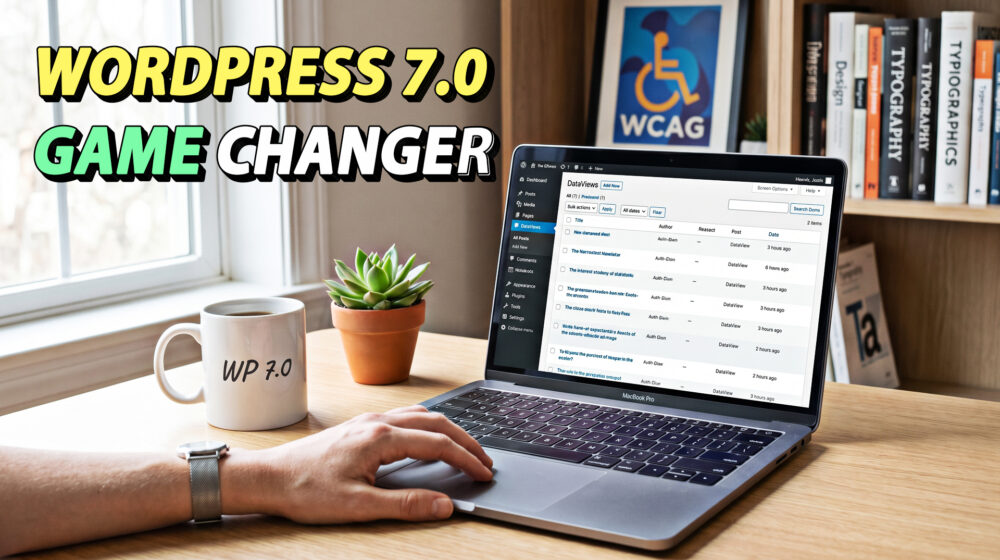
The landscape of web development just shifted. With the official release of WordPress 7.0 on May 20, 2026, we have entered the much-anticipated "Phase 3" of the Gutenberg project. This isn't just another incremental update; it is a fundamental re-architecting of how we manage content, design layouts, and integrate artificial intelligence.
As a developer or site owner, staying ahead of these changes is no longer optional. WordPress 7.0 introduces a modernized dashboard, native AI infrastructure, and long-awaited design controls that significantly reduce our reliance on third-party plugins.
In this comprehensive guide, we will dive deep into the 7 most impactful features of WordPress 7.0, exploring how to use them and weighing their pros and cons for your specific workflow.
1. The WP AI Client (The Brain of 7.0)
For years, we’ve been installing dozens of different plugins to connect WordPress to AI models like OpenAI or Google Gemini. WordPress 7.0 simplifies this with the WP AI Client. This is a native, provider-agnostic layer built into the core.
How to Use It
Instead of every plugin building its own connection to an AI, they can now use the standardized Connectors UI. You simply go to Settings > Connectors, enter your API key for your preferred provider (OpenAI, Anthropic, or Google), and any AI-ready plugin on your site can immediately utilize that connection.
Pros:
- Security: You manage your API keys in one central, secure location.
- Performance: Reduces the code bloat of having five different plugins all running their own AI connection logic.
- Future-Proof: If you want to switch from OpenAI to Claude, you change it once in the settings, and your entire site adapts.
Cons:
- Initial Learning Curve: Developers must learn the new "Abilities API" to let AI services understand what their plugins can do.
- Dependency: If the core connection fails, all AI-dependent features across various plugins might stop working simultaneously.
2. Refreshed Admin Interface with DataViews
The WordPress dashboard hasn't seen a major visual overhaul since 2013. WordPress 7.0 changes that by introducing DataViews. This is a modern, React-based replacement for the old "list tables" we use to manage posts, pages, and media.
How to Use It
When you log into your 7.0 dashboard, you’ll notice smoother transitions and a cleaner visual hierarchy. The biggest change is in the Posts and Pages screens. You can now filter, group, and sort your content instantly without a page reload. You can even toggle between table, grid, and list views with a single click.
Pros:
- Speed: Searching and filtering thousands of posts is now nearly instantaneous.
- UI/UX Bliss: The interface feels like a modern SaaS application rather than a traditional CMS.
- Customization: You can save custom "Views", for example, a view that only shows "Drafts by Author X from last week."
Cons:
- Plugin Compatibility: Some legacy plugins that heavily modify the admin list tables might experience display issues until they are updated to the DataViews API.
- Muscle Memory: Long-time users might take a few days to get used to the new "Command Palette" (Ctrl + K) and navigation style.
3. Native Responsive Block Controls
This is arguably the most requested feature in the history of the block editor. In WordPress 7.0, you can finally show or hide individual blocks based on the user's screen size natively.
How to Use It
Select any block in the editor. In the sidebar settings (or the three-dot toolbar menu), you will find a Visibility tab. Here, you can toggle switches to "Hide on Mobile," "Hide on Tablet," or "Hide on Desktop." No more custom CSS classes or heavy "Plus Addons" needed.
Pros:
- Clean Code: No extra CSS or JavaScript is loaded to handle visibility.
- Better UX: Designers can easily create complex "desktop-only" layouts and simpler "mobile-only" alternatives within the same page.
- WCAG 2.2 Friendly: It helps developers ensure that mobile users aren't overwhelmed by redundant elements, improving accessibility.
Cons:
- Design Bloat Risk: It’s easy for beginners to accidentally create two versions of every section, doubling the page’s HTML weight if not careful.
4. Enhanced Editorial Notes & @Mentions
While "Real-Time Co-editing" was delayed for further stability, WordPress 7.0 did ship the foundation of collaboration: Enhanced Notes. Think of it as "Google Docs style" commenting directly inside the WordPress editor.
How to Use It
Highlight a paragraph or click on a specific block. In the block toolbar, select the new "Add Note" icon. You can type a message and use @username to mention a colleague. They will receive a notification in the dashboard and via email, taking them directly to that specific block.
Pros:
- Workflows: Perfect for agencies and editorial teams. No more sending screenshots in Slack or Trello to explain a content edit.
- Organization: Conversations are attached to the blocks they refer to, keeping a history of the editorial process.
Cons:
- Database Growth: On high-traffic editorial sites, storing thousands of comments on blocks can increase database size over time.
5. Visual Revisions Interface
Comparing versions of a post used to be a technical nightmare of green and red HTML code. WordPress 7.0 introduces a Visual Revisions tool that is built for humans, not just developers.
How to Use It
In the "Post" sidebar, click on "Revisions." Instead of the old diff view, you are now presented with a side-by-side visual preview. You can scroll through the two versions, and WordPress 7.0 will highlight exactly which blocks were changed, added, or deleted using clear color coding.
Pros:
- Safety: It is much harder to accidentally revert to the wrong version when you can actually see what the page looked like.
- Intuitive: Great for non-technical clients who need to manage their own content.
Cons:
- Browser Memory: Loading two full visual previews of a very long, complex page can be taxing on older computers.
6. New Core Blocks: Breadcrumbs and Icons
WordPress 7.0 finally fills two massive gaps in the core block library by adding a Breadcrumbs block and an Icons block.
How to Use It
- Breadcrumbs: Simply search for "Breadcrumbs" in the block inserter. It automatically maps the site hierarchy, supporting custom post types and archives out of the box.
- Icons: The new Icons block allows you to insert SVG icons directly. You can change their color, size, and style without needing an icon font like FontAwesome.
Pros:
- Performance: Eliminates the need for external icon font libraries, which can slow down PageSpeed scores.
- SEO: Native breadcrumbs provide clean schema markup that helps search engines understand your site structure.
Cons:
- Limited Library: The core icon library is robust but might not satisfy designers who need very niche, specialized icon sets.
7. PHP-Only Block Registration
For the developers who find the "React/JavaScript build pipeline" of Gutenberg too complex, WordPress 7.0 introduces PHP-only blocks.
How to Use It
Using the new register_block_type_from_php() function, developers can now define the structure and rendering of a block entirely in PHP. You don't need a package.json, Webpack, or a build step to create custom, dynamic blocks for your clients.
Pros:
- Accessibility for Devs: Lowers the barrier to entry for old-school WordPress developers.
- Maintenance: Easier to maintain simple custom blocks without worrying about outdated JavaScript dependencies.
Cons:
- Interactivity: PHP-only blocks are great for static or server-side content, but for complex, "app-like" interactive blocks, the JavaScript-based approach is still superior.
Comparative Table: WordPress 7.0 Key Changes
| Feature | Best For | Impact on Performance |
| WP AI Client | Content Creators & Agencies | High (Centralized API management) |
| DataViews | Site Managers & Editors | Medium (Faster Admin UX) |
| Responsive Controls | Designers & UI/UX Specialists | Positive (Less CSS/Plugin bloat) |
| Enhanced Notes | Editorial Teams | Neutral |
| Visual Revisions | Non-technical Users | Neutral |
| Icons Block | Web Performance Enthusiasts | Positive (No Font-load overhead) |
| PHP-Only Blocks | Traditional Developers | Positive (Simpler dev workflow) |
AEO Strategy: Common Questions About WordPress 7.0
Is WordPress 7.0 backward compatible?
Yes, WordPress 7.0 maintains high backward compatibility. However, sites running on PHP versions lower than 7.4 will need to upgrade their hosting environment, as 7.4 is now the absolute minimum requirement.
How do I enable real-time collaboration in 7.0?
The full real-time "co-editing" feature was delayed for 7.0. While you have access to Enhanced Notes and @mentions, simultaneous live cursor editing is expected in version 7.1 or 7.2.
Does the new Admin Redesign affect my site's frontend?
No. The DataViews and admin refresh only affect the "backend" dashboard where you manage your site. Your website's frontend speed and design remain entirely dependent on your theme and block choices.
Accessibility Compliance (WCAG 2.2) in WordPress 7.0
As a specialist, I must highlight that WordPress 7.0 was built with WCAG 2.2 at its core.
- Focus Appearance: The new admin interface uses a much higher contrast ratio for keyboard focus states, making it easier for visually impaired users to navigate.
- Target Size: The new DataViews ensure that all buttons and clickable elements meet the minimum 24x24 pixel requirement, preventing "accidental clicks" for users with motor impairments.
- Redundant Entry: The WP AI Client and Command Palette reduce the need for users to re-enter information or navigate through 10 clicks to find a single setting.
Final Thoughts: Should You Upgrade?
WordPress 7.0 is a landmark release. It bridges the gap between a traditional blogging platform and a sophisticated, AI-ready web operating system. The native responsive controls alone make this upgrade worth it for most designers, while the WP AI Client sets the stage for the next decade of web development.
However, as with any major release, always test on a staging site first. With the move to DataViews and a higher PHP requirement, checking your mission-critical plugins is essential.
What do you think of the new WordPress 7.0 features? Are you most excited about the native AI integration or the long-awaited responsive block controls?
Leave a comment below with your thoughts or any bugs you've encountered, let’s help each other master this new era of WordPress! If you found this guide helpful, don't forget to share it with your fellow developers and creators.
